
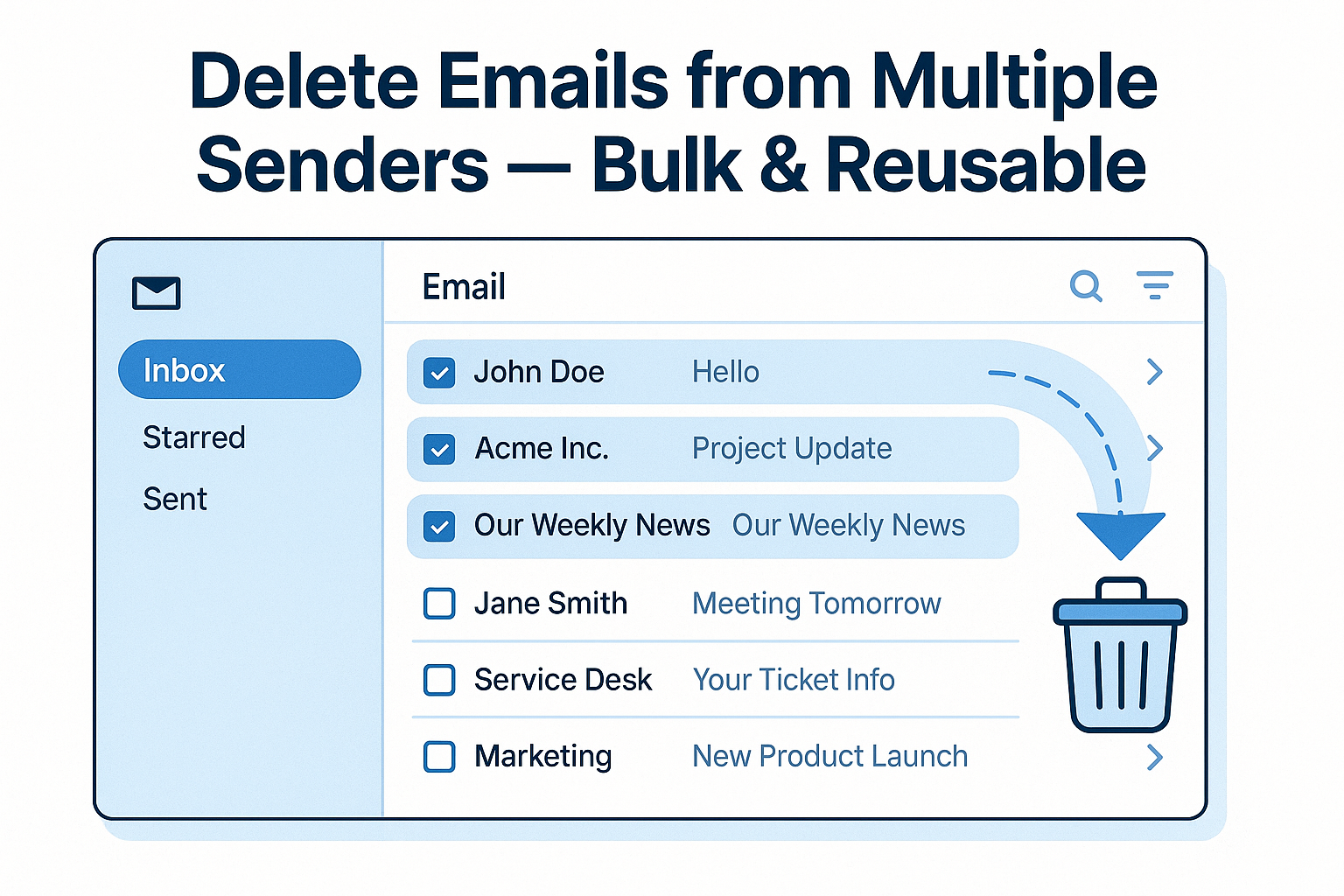
Are you overwhelmed by emails from multiple senders cluttering your inbox? Managing and deleting emails one by one can be time-consuming. Fortunately, there are simple and reusable ways to delete emails from multiple senders at once—whether you use Gmail, Outlook, or other email providers.
In this blog post, we’ll walk you through easy, step-by-step methods to bulk delete emails from specific senders. Plus, we’ll show you how to automate the process for future use, saving you valuable time and keeping your inbox organized.
Why Delete Emails from Multiple Senders in Bulk?
If you regularly receive newsletters, promotional emails, or unwanted messages from several sources, manually deleting them can be frustrating and inefficient. Bulk deleting emails based on sender addresses helps you:
- Quickly clean up your inbox
- Reduce email clutter and improve productivity
- Automate repetitive tasks for ongoing inbox management
How to Delete Emails from Multiple Senders at Once
1. Bulk Delete Emails in Gmail or Outlook Using Search Operators
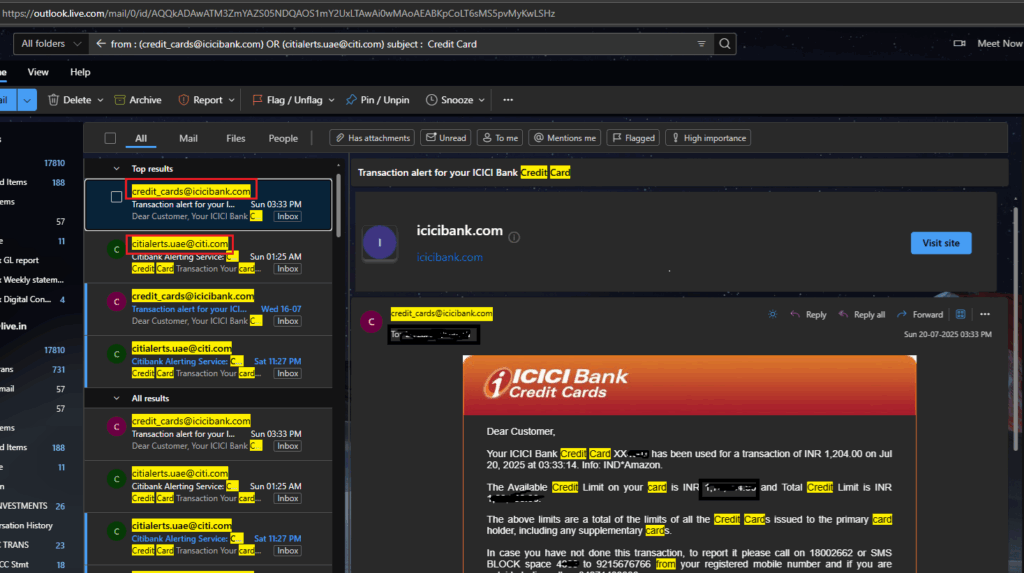
Gmail/Outlook has powerful search operators that let you filter emails by sender. You can combine multiple sender addresses in one search query.
Steps:
- Open Mailbox and type the following in the search bar:
from:(sender1@example.com) OR from:(sender2@example.com) OR from:(sender3@example.com)
- Press Enter to display all emails from these senders.
- Select all emails using the checkbox.
- Click the Trash/Delete icon to remove them.
You can save this search query in a document and reuse it whenever you want to delete emails from these senders again.
2. Automate Email Deletion in Gmail with Google Apps Script
For a more automated and reusable solution, use Google Apps Script to delete emails from specific senders.
Sample Script:
function deleteEmailsFromSenders() {
  var senders = [
    "sender1@example.com",
    "sender2@example.com",
    "sender3@example.com"
  ];

  senders.forEach(function(sender) {
    var threads = GmailApp.search('from:' + sender);
    GmailApp.moveThreadsToTrash(threads);
  });
}
How to Use:
- Visit Google Apps Script.
- Create a new script and paste the code.
- Replace the sender email addresses with your target list.
- Run the script to delete matching emails.
- Reuse or schedule the script for ongoing inbox cleaning.
3. Bulk Delete Emails in Outlook Using Rules
Outlook users can create rules to automatically delete emails from multiple senders.
Steps:
- Open Outlook and go to Settings > Mail > Rules.
- Create a new rule with the condition: From → add multiple sender emails.
- Set the action to Delete or move to Deleted Items.
- Save the rule and run it manually or let it operate automatically.
Bonus: Use Python Script for Any Email Provider (Advanced)
If you’re comfortable with coding, a Python script using the IMAP protocol can connect to almost any email provider and delete emails from specified senders. This method is reusable and customizable but requires technical knowledge.
Final Thoughts
Deleting emails from multiple senders in one shot is easier than you think! Whether you prefer manual search methods, automation via Google Apps Script, Outlook rules, or advanced scripts, there’s a solution to suit your needs.
Try these methods today and reclaim control of your inbox.
Bonus!!!
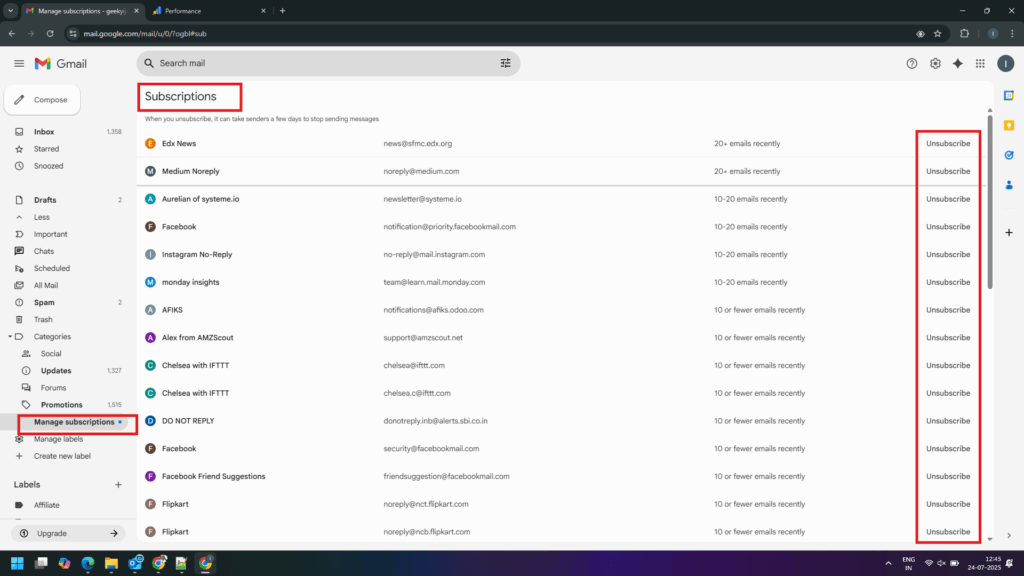
Subscription management: List all your active subscriptions and unsubscribe all from one page.
Navigation: Left Menu -> More -> Manage subscriptions
Did you find this guide helpful?
Let us know which method worked best for you in the comments below!
Leave a Reply